We've already gone through the automation of scheduled data restore in Symantec/Veritas using powershell.
If you haven't gone through please refer the article Symantec/VERITAS Scheduled Data Restore Test From Backup
Even though Veeam backup is featured with sure backup recovery verification, the below PowerShell script helps those who don't have license to enable this feature.
The script can be used to automate file/folder restore test from the Veeam backup and this test is performed to ensure that the data is recoverable from backup.
Pre-requisites
1. Windows Powershell version 4.0 or above
2. Ensure that Veeam backup powershell module installed in your backup server.
Reference : Veeam Backup Powershell - Get Start
3. Verify the name of server or servers in the veeam backup console those are selected for restore test.(it may case sensitive and must have to input into the script as it is).
4. Create a folder named “BackupTest” in the C or D drive of servers chosen for restore test and create another folder inside it, then add some files into it.(Total size of all files in the folder should be greater than 1 MB).

5. By verifying the backup job report ensure that the folder was successfully backed up in the last backup schedule.
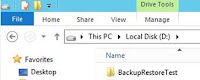
6. Create a folder named “BackupRestoreTest” on the D or any drive of the veeam server.
Happy Automation ✌
Cheers
Sijo John
2. Ensure that Veeam backup powershell module installed in your backup server.
Reference : Veeam Backup Powershell - Get Start
3. Verify the name of server or servers in the veeam backup console those are selected for restore test.(it may case sensitive and must have to input into the script as it is).
4. Create a folder named “BackupTest” in the C or D drive of servers chosen for restore test and create another folder inside it, then add some files into it.(Total size of all files in the folder should be greater than 1 MB).

5. By verifying the backup job report ensure that the folder was successfully backed up in the last backup schedule.
6. Create a folder named “BackupRestoreTest” on the D or any drive of the veeam server.

How to use the PowerShell Script
STEP 1) Download the script “VB-Restore.ps1” from the GitHub and extract it to any drive. For example extract it to the D driver folder "BackupRestoreTest" in the veeam server
Github Link : Veeam-Data-Restore-Test
Github Link : Veeam-Data-Restore-Test
STEP 2) Edit following portion in the script.
#Edit this session
#The folder chosen for test restore from the server.
$Foldername = "D:\BackupTest\Data-Backup-Test\"
#The Server chosen for test restore
$Server = "Server01"
Note: Ensure that server name should be exact match with the name shown in the backup exec console.
Example: “Server01” or Server01.sjohnonline.in
#Data restore path
$Restorepath = "\\server01\d$\BackupTest\"
# The user account configured on veeam server which has privileged access.
# You can get this info using below commands in an admin powershell on veeam server
# Add-PSSnapin VeeamPSSnapin
# Get-VBRCredentials
# Pick the User Name : Domain\username
$Accountname = "DOMAIN\veeam_access"
#This is the name of the Backup Job
$Backupname = "Main Backup"
# The user account configured on veeam server which has privileged access.
# You can get this info using below commands in an admin powershell on veeam server
# Add-PSSnapin VeeamPSSnapin
# Get-VBRCredentials
# Pick the User Name : Domain\username
$Accountname = "DOMAIN\veeam_access"
#This is the name of the Backup Job
$Backupname = "Main Backup"
#Email address of sender
$FromAddress = "VBrestoretest@sjohnonline.in"
#Email address of recipient
$ToAddress = "sjohn@sjohnonline.in"
#Subject of the email
$Subject = "Veeam backup monthly scheduled backup-Restore Test"
#SMTP Server responsible for email service
$SMTPServer = "Enter SMTP server name or IP here"
#SMTP Server port number
$SMTPPort = “Enter the SMTP port number”
#Since Veeam backup powershell module doesn't support copyto command ; the folder gets restored into same root folder with prefix RESTORED-Foldername. To verify the file restore from script enter the name of folder restored into the path with prefix RESTORED-foldername.
#Since Veeam backup powershell module doesn't support copyto command ; the folder gets restored into same root folder with prefix RESTORED-Foldername. To verify the file restore from script enter the name of folder restored into the path with prefix RESTORED-foldername.
$Restorepathcheck = "\\server01\D$\BackupTest\RESTORED-Data-Backup-Test"
STEP 3) Open a PowerShell (Administrative PS recommended)
STEP 4) Navigate and set path to script root folder
Example: PS D:\VEEAM-Data-Restore-Test>
STEP 5) Run the script --> PS D:\VEEAM-Data-Restore-Test> .\VB-Restore.ps1
SETP 6) The folder gets restored into it's original location with a prefix "RESTORED-folder name".
Veeam PS module doesn't have the option to restore file/folder into a different location; hence it restore it into the original location by keeping the original copy.
You will get an email notification about the restoration job status.

STEP 9) The log will be attached and send to the recipient email address with following information
Restore test performed on Server = SERVER01
Restored folder = D:\BackupTest
Restore path = \\SERVER01\D$\BackupTest\RESTORED-Data-Backup-Test
Restore start time = 07/23/2019 16:31:22
Restore complete time = 07/23/2019 16:31:22
Size of data restored in MB = 5.47 MB
Please find atached log report of scheduled file restoration test.
Restore status = Success
STEP 10) Information in the Log file helps to analyze the estimated time requirement for data restore.

STEP 11) The script can be schedule using task scheduler to perform restore tests from backup as per the requirement.
SETP 6) The folder gets restored into it's original location with a prefix "RESTORED-folder name".
Veeam PS module doesn't have the option to restore file/folder into a different location; hence it restore it into the original location by keeping the original copy.
You will get an email notification about the restoration job status.

STEP 7) upon completion of restore operation, the script verifies the file restored and notify if the folder is empty or not. If folder is empty “restore failed”.Also you will get the email notification with details and log.
STEP 8) Logging is enabled on the script for troubleshooting, check “logs” folder under the script root folder if you come across any errors.


STEP 9) The log will be attached and send to the recipient email address with following information
Restore test performed on Server = SERVER01
Restored folder = D:\BackupTest
Restore path = \\SERVER01\D$\BackupTest\RESTORED-Data-Backup-Test
Restore start time = 07/23/2019 16:31:22
Restore complete time = 07/23/2019 16:31:22
Size of data restored in MB = 5.47 MB
Please find atached log report of scheduled file restoration test.
Restore status = Success
STEP 10) Information in the Log file helps to analyze the estimated time requirement for data restore.

STEP 11) The script can be schedule using task scheduler to perform restore tests from backup as per the requirement.
Troubleshooting
1. Logging is enabled on the script with run time, date and year, check the folder "logs"
Future Enhancements
1. Expand functionality for Microsoft Azure backup.
Veeam Backup version Tested
Veeam Backup and Replication 9.5 - Version 9.5.0.1922
Happy Automation ✌
Cheers
Sijo John


